
Accordion stretching image next to it in Squarespace 7.1
This tutorial explains why images expand when placed next to Accordion Blocks in Squarespace 7.1 using Fluid Engine. The issue happens because Fluid Engine uses a rigid row-based grid system, causing rows to increase in height as accordion content expands. Since the image shares those same rows, it stretches as well. The video demonstrates how the grid behaves in Inspect Element, explains why the browser cannot automatically add more rows, and shares two practical no-code fixes: switching the Image Block to “Fit” or “Shape,” or extending the Accordion Block beyond the image area to create additional expandable rows. The recommended solution helps maintain image proportions while allowing accordion content to grow naturally across responsive layouts.
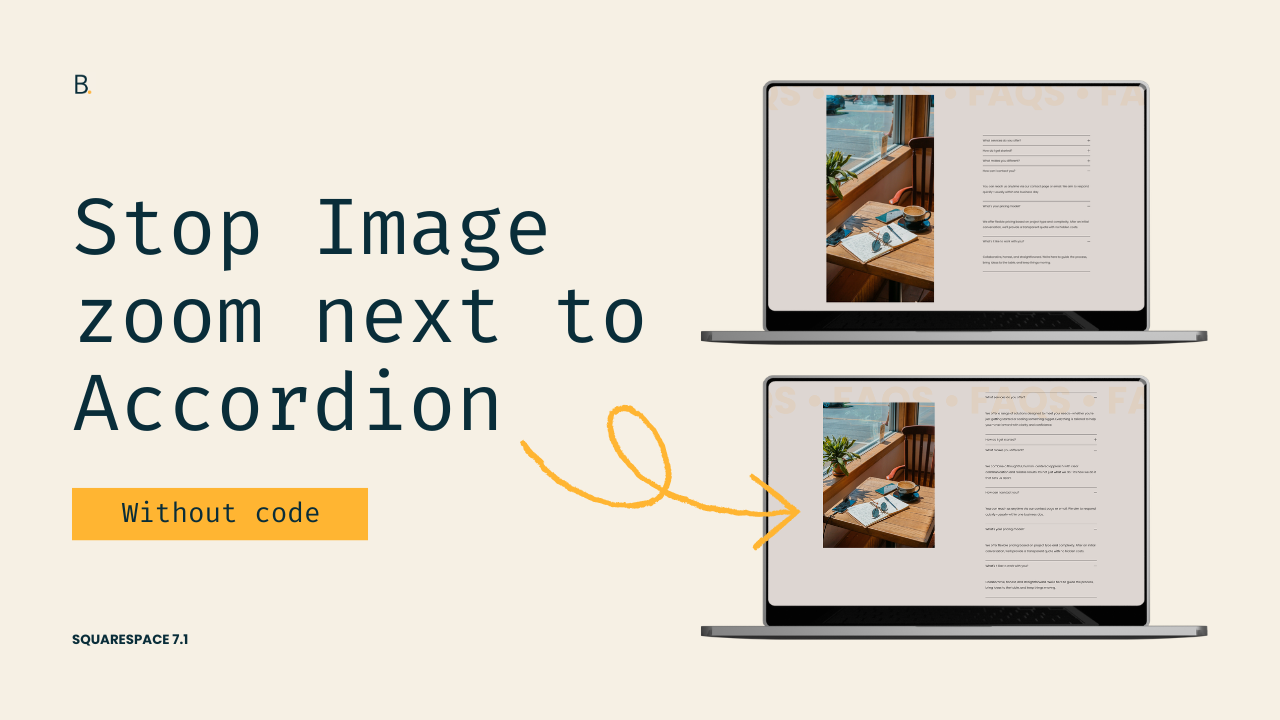
You know what the problem is.
I know what the problem is.
Let’s just dive into this 1-min no code solution!
Video timestamps
00:00 - Why the Image Expands Next to an Accordion Block
Alright so let me show you why your image is expanding when it's next to an Accordion Block in Squarespace 7.1 and how you can fix it without code.
So here I have my image with the corresponding Accordion Block on the side, and if you've had this issue before on a client project, you already know what's gonna happen when I click on one of these questions.
So once I start opening up the different dropdowns of the Accordion Block, the image just keeps expanding and expanding and expanding on based on the content that we have inside the answers.
00:30 - Understanding the Underlying Grid System
Now the reason for this is pretty simple. It has to do with the underlying grid that we use to place items inside sections in Fluid Engine.
So if we take a look in the Inspect Element tool and then we stand on the grid itself, which is what we see in the Edit Mode, if I turn this on, you're going to see that the Accordion Block is currently covering 1, 2, 3, 4, 5, 6 and 7 rows.
Now the problem here is that the grid system is fairly rigid. It works similarly to Excel spreadsheets. So because we've set the content to cover this number of rows, when more space is needed because we're opening up the collapse portion, the browser cannot simply choose to make the Accordion Block cover more rows.
Instead, it expands the height of the rows.
01:26 - Why the Image Expands Along With the Rows
So here if I open this up, you're going to see how the height of these rows starts becoming a little bit bigger, and then with this one, that one becomes a little bit bigger, and then here bigger again.
And the thing is that the image is sitting in an area where those rows are also located. So because the height has to be even across the entirety of the row, then the Image Block only has the option to expand as well.
01:53 - First Possible Fix: Fit or Shape
One of the ways that you can fix this is by simply changing the Image Block to the "Fit" or the "Shape" option.
Now that may still not give you the exact result that you want, but it can still help a little bit.
02:02 - Recommended Fix for “Fill” Images
On the other hand, if you absolutely have to work with the "Fill" option the way that I'm doing here, then what I recommend as a solution is to simply stretch out the Accordion Block so that it goes beyond the limits of the image.
That is going to give it first enough space to try to fit as much content as possible, and second empty rows to stretch out if more space is needed.
So let me show you what that looks like.
Usually what I see is the Accordion Block match the height of the image, but again this is going to cause the same problem if the content of the Accordion Block is taller than the image, and that's something that usually happens when you reach tablet sizes.
So instead of trying to fight with the size of the image or the size of the Accordion Block, you can go ahead and simply expand the Accordion Block one row over, either to the top or to the bottom or both sides depending on where you're aligning the Accordion Block.
And that is just going to create the extra space that it needs.
03:01 - How the Extra Rows Prevent the Image From Expanding
So here if I were to refresh this site, if I start opening up the different questions, you can see how first there's not room needed yet for all the content to fit in, but once I reach that limit, what's going to happen is that the browser is going to start expanding those empty rows down here.
And because the image is not sitting in those rows, it's not going to expand anymore.
TL;DR
The Image Block stretches when it’s sitting next to an Accordion Block due to how the underlying grid system of Fluid Engine works.
One way to fix the problem is to use the “Fit” or “Shape” Image Block option.
However, if you absolutely MUST work with the “Fill” option, then a better solution is to use the grid to your advantage, by expanding the Accordion Block beyond the limits of the Image Block.
That will provide enough room for the content to expand into, and empty rows that can be modified, without affecting the Image.
I really hope that you enjoyed this quick tip and that you're able to use it on your current and future client projects.
Until next time,
B.
