
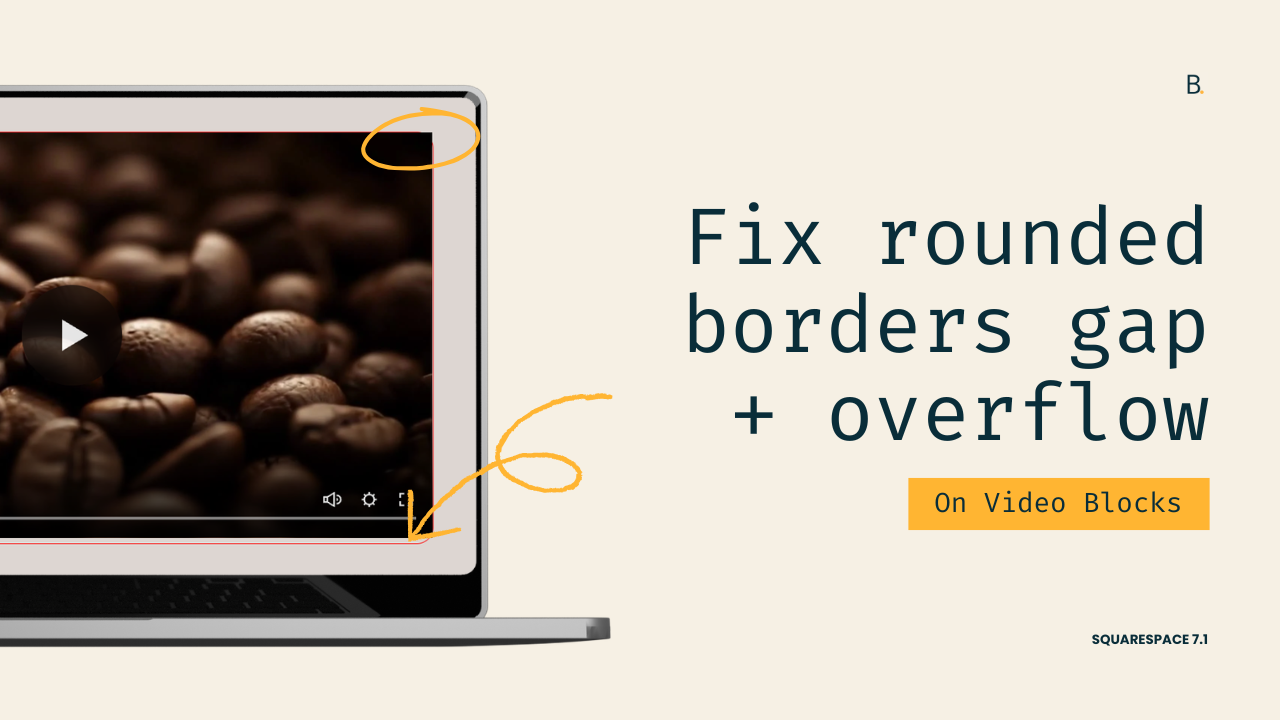
Remove gap between video and border and set up rounded corners for Video Blocks in Squarespace
This tutorial demonstrates how to add borders and rounded corners to Squarespace Video Blocks without creating gaps beneath the video or allowing the video content to extend beyond rounded edges. The key is identifying a container that matches the video's exact dimensions rather than targeting the main Video Block wrapper, which often has additional height. After locating the correct container, such as .sqs-native-video for native Squarespace uploads, a border can be applied cleanly without affecting responsiveness. To create properly rounded corners, border-radius is added alongside overflow:hidden, ensuring any video content extending beyond the curved edges is cropped for a clean and professional appearance.
These are quick fixes that aren’t needed for every project, but they’re certainly helpful to have in your back pocket.
If you want to make sure your Video Block border displays nicely, in this tutorial I’ll show you how to pick the “right” container to apply it – without gaps – and why the element you target makes all the difference.
Plus, you’ll see how easy it is to crop content that pokes out of rounded corners, if you also plan to add a border-radius.
A few questions on both topics have been asked inside the Club so, today, I wanted to share a twofer tutorial with the recommendations I normally give to tackle those issues.
Let’s get to it!
Video timestamps
00:00 - Quick Overview
Alright, so let me show you how you can set up a border and a border-radius for a Video Block without ending up with a gap at the bottom or the edges of the video poking out from the corners.
To tackle this, we're going to take three steps. First, we're going to look for the container that has the right size for our goal. Second, we're going to target that container depending on how global we want to make that customization. And third, we're going to apply our styles.
So let's go ahead and get started with this Video Block that I have here.
00:28 - Finding the Right Container
I'm going to look through the Inspect Element tool for that container that has the right size for what I'm trying to do.
The right size in this case is going to be a container that matches the exact width and height of the video so that when I add a border to it, I don't get the gap underneath.
Usually what happens is that when you try to add a border to a Video Block the same way that you do it for other kinds of blocks, and you use what I like to call the main wrapper as your target, this top container has a different height than the video inside it.
So right now, if I were to target the Video Block through that container class, .video-block, and then I add a border to it, solid red, here you can see that I get that dreaded gap.
And then if I start shrinking down the screen, you're going to see how that becomes a lot more obvious because that block is expanding, but the content inside it isn't.
So that's why the first step is the most important. We need to locate the container that has the height of the actual video, which is not necessarily the video itself.
01:43 - Inspecting Alternative Containers
So let's go ahead and take a look at other containers. I'm gonna keep the screen at this size because I think this is going to help a lot.
So let's go ahead and look through them.
So again, starting here with the Video Block, you can see how obviously this one is not going to work.
If we take a look at the next one, this one, .sqs-block-content, you can see how it kind of has the height of the video, but there's like a little bit of extra container.
So this is not going to give us that really flush look with the border. Let's keep going.
If we look here at .intrinsic, same thing. And then .embed-block-wrapper, same thing.
So if we open this one up, we see another one that's called .sqs-native-video, in my case, because I'm using a video that I uploaded into Squarespace.
If you're using a Video Block that has a YouTube link or a Vimeo link, that container is going to have a different class and may even have a different structure.
02:34 - Applying the Border to the Correct Element
So in the case of native videos, this is the container that I now see. And as you may notice on the screen, this one has the exact height of my video.
So what I'm gonna do is I'm gonna target this container instead and apply the border to it.
I want to keep my Video Block borders very global, so I'm not going to modify my selector anymore. I'm just going to target the .sqs-native-video container within Video Blocks across the entirety of the site.
If you wanted to do this for a specific page or a specific section, you can go ahead and keep adding in here selectors based on how you want to narrow things down.
Now, once I have this in place, you can see that the border is showing up with the right height and width of the video. So that's perfect.
And of course, if I stretch that out like I did, or if I shrink this up, you can see how everything remains where it should. So that's awesome.
03:30 - Adding Border-Radius
Now let's go ahead and deal with the border-radius.
I'm going to stretch this out because we no longer need to see the difference. And then I'm going to apply here a border-radius of, let's say, 20px, alright?
So right now, you can see how the border itself is rounding at the corners, but the video is still poking out through the edges.
03:53 - Fixing the Video Edges with Overflow: Hidden
So the way that we can stop this and crop those edges is by making sure that wherever we add that border-radius, we also include overflow:hidden. Typed in correctly.
There we go. And once we do that, what the browser is going to do is crop off anything that wants to poke out from that border-radius and just leave us with a clean border all around.
TL;DR
Use Inspect Element to find the “right” container. The one that matches the video's exact dimensions.
For native Squarespace uploads, .sqs-native-video is often a good target.
Apply the border to that container instead of the outer wrapper (.video-block).
Add border-radius to create rounded corners as normal, but make sure to include overflow:hidden to prevent the video from poking through the rounded edges.
This trick goes beyond videos, so try it on other blocks as well to get a clean look.
That’s all for now!
Until next time,
B.
Full code
Custom CSS Window
/*BORDER AND ROUNDED CORNERS FOR VIDEO BLOCKS WITHOUT GAPS OR OVERFLOW*/
.video-block .sqs-native-video {
  border: 1px solid red;
  border-radius: 20px;
  overflow: hidden;
}
