
How to create a logo resize animation on scroll in Squarespace
This tutorial explains how to create a big-to-small logo animation in Squarespace 7.1 using only CSS. The effect is achieved by positioning and scaling the logo with transform properties, then using Squarespace’s built-in .shrink class to reset the logo when the user scrolls. A transition is added to smooth the movement between states. While the method may not be perfectly precise for every layout, it provides a simple and effective way to add a polished scroll interaction, with very little code.
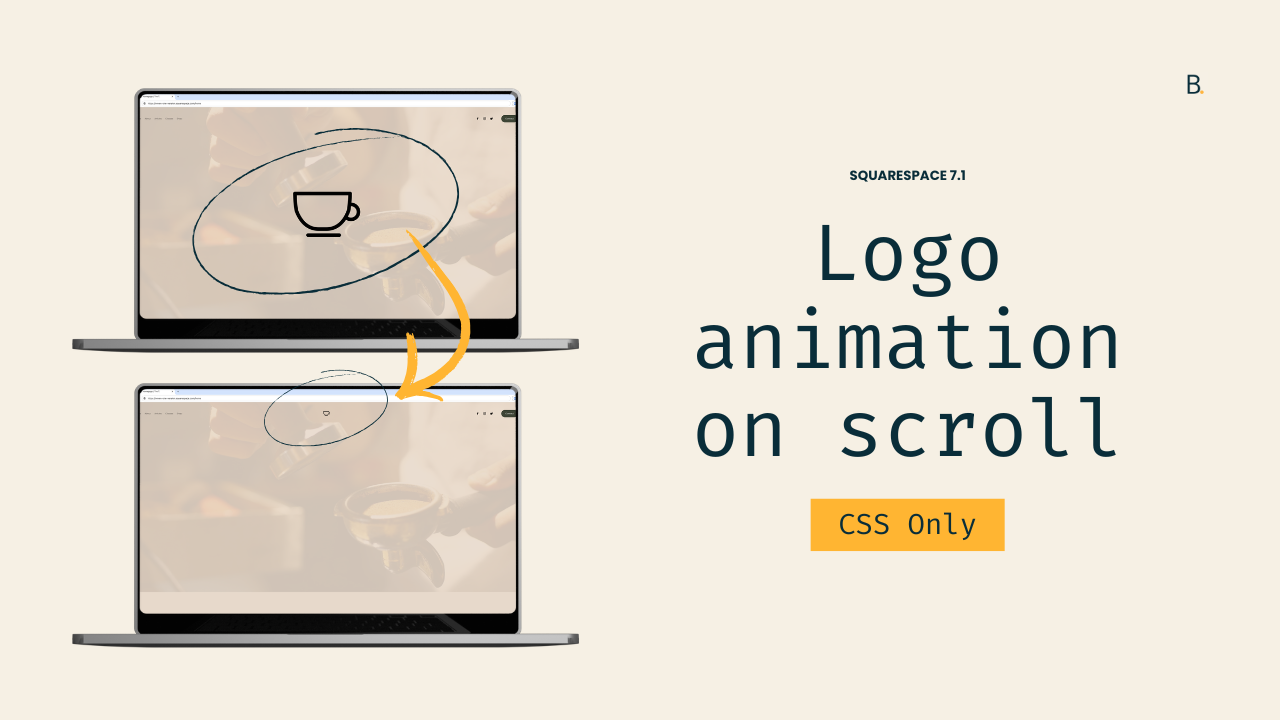
If you’re looking for a quick way to create an on-scroll animation for you'r project’s logo, today’s tutorial can help.
However, since this is a CSS-only approach, keep in mind that a) the result is NOT going to be pixel perfect, and b) depending on the layout of the hero section, you may need to implement additional modifications that aren’t covered here.
Nonetheless, it’s a simple and easy starting point that can help build the base for a larger customization, or spark ideas for a setup that works best with your existing design!
So, with that out of the way, let’s jump into it.
Video timestamps
00:00 — Effect Caveat
In this tutorial, we'll be creating this big-to-small logo effect in Squarespace 7.1 just with CSS.
We're going to limit ourselves to this fully centered layout in order to implement the animation as smoothly as possible.
But because we're going to be using only CSS, the final result is not going to be pixel perfect.
If you need to be super precise in the positioning of the logo when it becomes big in your specific project, this approach may not work for you.
Nonetheless, I encourage you to give this a shot and see how it works.
00:30 — Header Setup
Now there are pretty much two and a half things that you need to set up inside your header to be able to follow along.
So here we need to have the logo in the center. That means using the second to last option inside the header layout, and then you also need to have the Fixed Position option enabled as well as the Fixed Header Style set to Basic.
The other thing that you may need, and this is completely optional, is to set the Height of the header as 1.8vw width.
This is just going to stop any sort of difference in height when you're scrolling down the page using this fixed position option.
Now with those things out of the way, let's go ahead and hop onto the code.
01:06 — Targeting the Logo
The first thing we need to do is find a way to target the logo element.
I would personally recommend working with a container that has the exact size of the image.
I'm going to go ahead and target this <a> element container, and then I'm going to be using .header-title-logo just to make sure that I'm only targeting the <a> element within the logo area.
So let's go ahead and grab that and go into our Custom CSS Window.
01:37 — Positioning the Logo
The first thing we're gonna do is move it to the middle of the screen.
The way that we're gonna do this is by using the transform property, and specifically the translate() function.
So let's go ahead and set that up in our code transform: translatey(45vh).
Visually, that seems to be around the center of the screen, so I think I'm gonna keep it there.
We're going to resize it and then see if we need to adjust the position again.
02:03 — Scaling the Logo
Now to be able to make this logo bigger without affecting anything else on the page, we're going to add another function called scale().
With this one, we're pretty much going to tell the browser how many times larger we want this element to be.
If I use 10 in here, you can see that we end up with a really big cup.
Looking back at the position, I think this pretty much sits in the middle of the screen, so we're going to leave it there.
02:30 — Scroll Trigger with .shrink
Alright, so now it's time to snap back the logo into place in the header.
That is where the Fixed Position option comes in.
If we inspect the header element at the moment, you're going to notice that we have a couple of classes in here. But then if I start scrolling down the page, the purple highlight is telling me that something is changing in the HTML structure of that element.
That specific change is that there is a class of .shrink that gets added and removed depending on if we're scrolling down the page or not.
That class is what we can use in our code to tell the browser what to do when we're scrolling down the page.
If we take a look at the structure once more, we can see the whole header container, and somewhere within that container we have our logo and the <a> element inside .header-title-logo. So our selector could look like this if we wanted to.
03:41 — Removing the Transform on Scroll
Now, knowing that this is where we want the logo to be at any point, if we wanted to do something else when that .shrink class is present, we can rewrite our selector slightly.
So when the header has the ID #header and the class .shrink, we want the .header-title-logo a element inside it to not move anywhere.
Now if I scroll down, the transform stops.
04:04 — Adding A Smooth Transition
At the moment, this is looking way too blunt. It's just snapping back automatically, with no smooth motion.
To fix that, we're going back into the original code and setting a transition: all 0.5s.
This creates a smooth transition between translatey(45vh) and scale(10) to none.
TL;DR
To achieve this effect, we’ll be targeting the a element inside the .header-title-logo container.
We’ll use the transform property to both position and scale the logo in the middle of the screen. This will ensure nothing else gets repositioned on the page.
To snap back the logo into place, we’ll make use of Squarespace’s native .shrink class. A class that shows up when we scroll down the page, when the header is set to the Fixed option.
Lastly, using a CSS transition, we’ll smoothly animate the logo between its big and small states.
And that’s it!
Now that you know the logic behind this effect, feel free to adjust it as needed to achieve a result that works with your existing layout.
Until next time,
B.
Full code
Custom CSS Window
/*LOGO RESIZING ANIMATION ON SCROLL IN SQUARESPACE 7.1*/
#header .header-title-logo a {
   transform: translateY(45vh) scale(10);
   transition: all .5s;
}
#header.shrink .header-title-logo a {
   transform: none;
}
