
(Part 3) Force code to work ONLY during Edit Mode, not the Live Site in 7.1
Force code to work only on Edit Mode and not the Live site in Squarespace 7.1
In Part 3 of this Squarespace tutorial series, we learn how to apply custom CSS so that it works only in Edit Mode and not on the Live site. Using the .sqs-edit-mode class, we make a hidden Code Block visually stand out in the backend by adding a temporary background color. This method is useful for locating embedded scripts or pop-ups inside complex layouts without affecting the live design. The tutorial completes the three-part series on controlling where and when custom code runs in Squarespace 7.1.
Leaving the weird one for last!
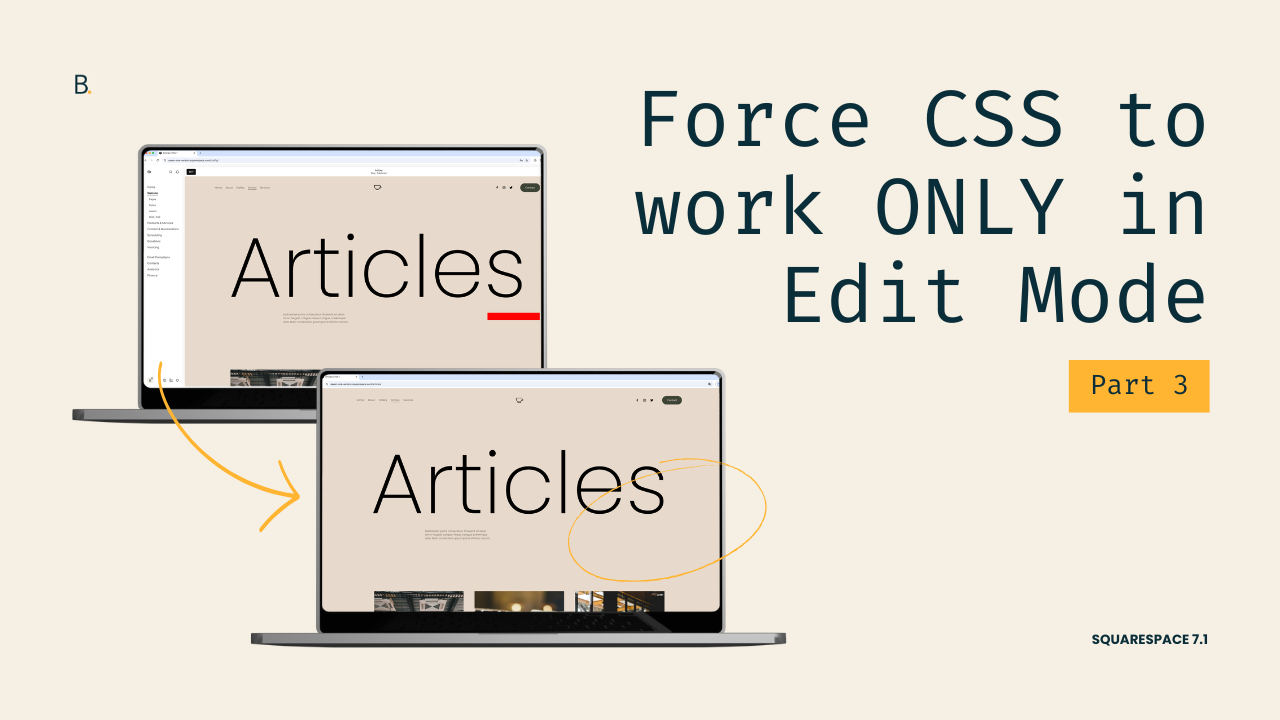
Now that we’ve tackled how to disable code while modifying content on the page, and how to stop code from working while inside the backend, in this final video you’ll learn how to make custom code work only inside Squarespace’s Edit Mode, NOT on the Live site.
And I know I know… that sounds really strange.
BUT, there are very specific situations where enabling code only in the backend can be time (and sanity) saving.
This technique is especially helpful when working with complex layouts, Code Blocks, or hidden elements inside Squarespace 7.1.
If you’ve ever needed backend-only styling for troubleshooting or client edits, then look no further! This tutorial will show you exactly how to do it.
Video timestamps
00:00 — Introduction to Part 3
Alright, so this is the third part of this tutorial. We so far covered how you can stop code from working while you're actively editing the content in Squarespace and how you can stop the code from working while you're overall in the backend of Squarespace.
Now in this third example, we're going to see how we can stop the code from working on the Live site and rather have it working only while you're inside Edit Mode.
So without further ado, let's go ahead and take a look.
00:25 — Example: Hidden Code Block
Now I want to show you one last example that is pretty specific, but may come in handy in certain situations.
So if I go back onto the articles page and then get rid of this, because we're not going to need it anymore, on this page, let's load it here.
You're going to see that after a few seconds, I get this little pop-up showing up. This one is coming from a Code Block that is on this page, which is obviously not visible.
And then if I go into the backend and edit the page, I cannot really see where that Code Block is located.
And I know that this is a very simple example, and of course if you were to do something like this, you would be able to find the Code Block. But humor me, and let's just assume that this is a very complicated layout and it's pretty difficult for your client to be able to find that Code Block, or even for yourself to find it after going back into a site that you haven't touched in a couple of months.
So regardless of the reason why you want to make that Code Block more visible, let me show you how we can do that.
01:32 — Adding a Background Color to Locate the Code Block
I'm going to go back into my Custom CSS window, and what I would recommend in this situation is to basically just give that Code Block a background color, a border, something that's just going to make it stand out on the screen.
So I'm simply going to be targeting the Code Block through the class of .code-block, because I already know that that's a class that the Code Block has, but you're free to use a block ID or a data-section-id or an anchor link, whatever it is, if you need to narrow things down.
And then it's just a matter of giving it a background color, so I'm going to set this one to background-color: red, and then it seems like I need to refresh this to make sure that the code applies.
But basically, this is just going to make sure that the Code Block is visible on the screen. So now once this loads, we can obviously see that the Code Block is located there.
02:26 — Live Site situation
Now the problem is that you probably don't want to have that showing up on the Live site, right? Because if I were to go onto the same page here, now I get that really obvious red rectangle.
And even though that may be a look, it's not the look that I'm going for right now.
So if what I want to do is make sure that the code applies only while I'm in the backend, then what I can do is continue to use one of those two classes that we've applied before, based on when I want to see the Code Block.
I personally think that the easiest way would be to just have this show up at any point in the backend, so I'm going to be relying on the class of .sqs-edit-mode.
03:08 — Using .sqs-edit-mode to Target Only the backend
That means that now .sqs-edit-mode, there we go.
So again, what this translates to is when the body has the class of .sqs-edit-mode, this happens. And in this case, that's exactly when I want the code to apply, so I'm not going to be using the :not() pseudo-class, because I don't want to apply the code when the class is not present. I want to apply the code when the class is present, so I'm going to keep it as it is.
And now I'm going to wrap my code, or rather just move the snippet, either or, and place it in here.
So when that class of .sqs-edit-mode is present on the body tag, then the Code Block is going to turn red.
03:55 — Testing the Backend vs the Live Site
So let's refresh this just to make sure that the code is applying, because today Squarespace seems to be a little bit finicky.
Let's wait for this to load, and now I should still be able to see the background color applied to the Code Block, because the class of .sqs-edit-mode is applying. So here you can see the red rectangle.
Then if I open this up, the red color disappears because the code is not applying, because the class is not present.
And then if I go onto the Live site and refresh this, I don't see the Code Block either.
And that's it. Now you know how you can apply custom code to Squarespace 7.1 only during Edit Mode or only on the Live site!
TL;DR
Squarespace adds the class .sqs-edit-mode to the <body> tag whenever you're inside the backend editor.
If you wrap your custom CSS inside .sqs-edit-mode, it will only apply while you're in Edit Mode.
That means visitors on the Live site will never see those styles.
This is especially useful for highlighting hidden Code Blocks or temporarily troubleshooting complex layouts.
That’s it!
Now you know the final way in which you can rely on Squarespace’s built-in editor classes to turn your code on or off, at will.
Until next time,
B.
Full code
Custom CSS Window
/*MAKING CODE WORK ONLY IN THE BACKEND OF SQUARESPACE 7.1*/
body.sqs-edit-mode {
  //your snippets here
}
